Basic Setup Tutorial

Overview

This tutorial will guide you through the basic setup of the Website Access Restriction Tool. You'll learn how to install the software, configure it for your needs, and start using it to restrict access to specific websites.

Note: This tool is a standalone application and does not include any browser extensions. All website restrictions are managed through the application interface.

Requirements

Before you begin, make sure your system meets the following requirements:

  • Windows 10 or later
  • Administrator privileges for installation
  • At least 50MB of free disk space

Installation

Follow these steps to install the Website Access Restriction Tool:

  1. Download the latest version from our installation page
  2. Run the installer executable
  3. Follow the on-screen instructions
  4. Launch the application when installation is complete
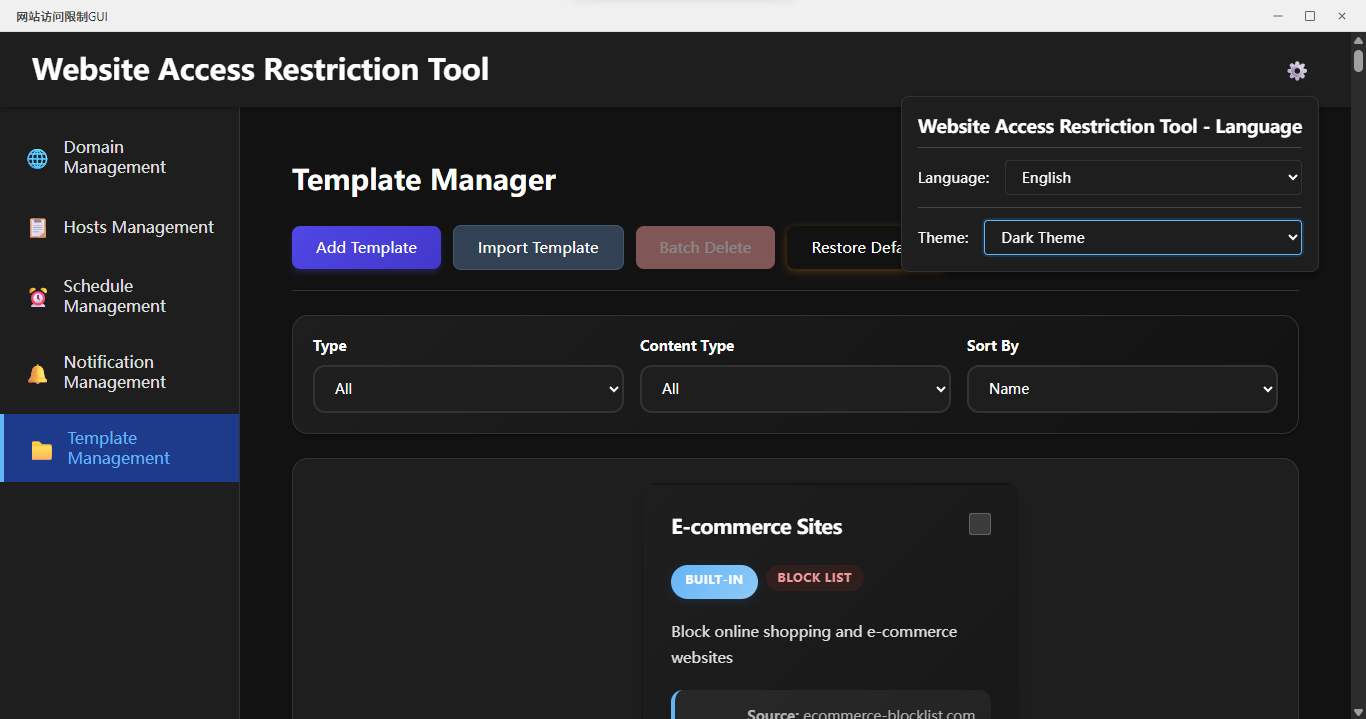
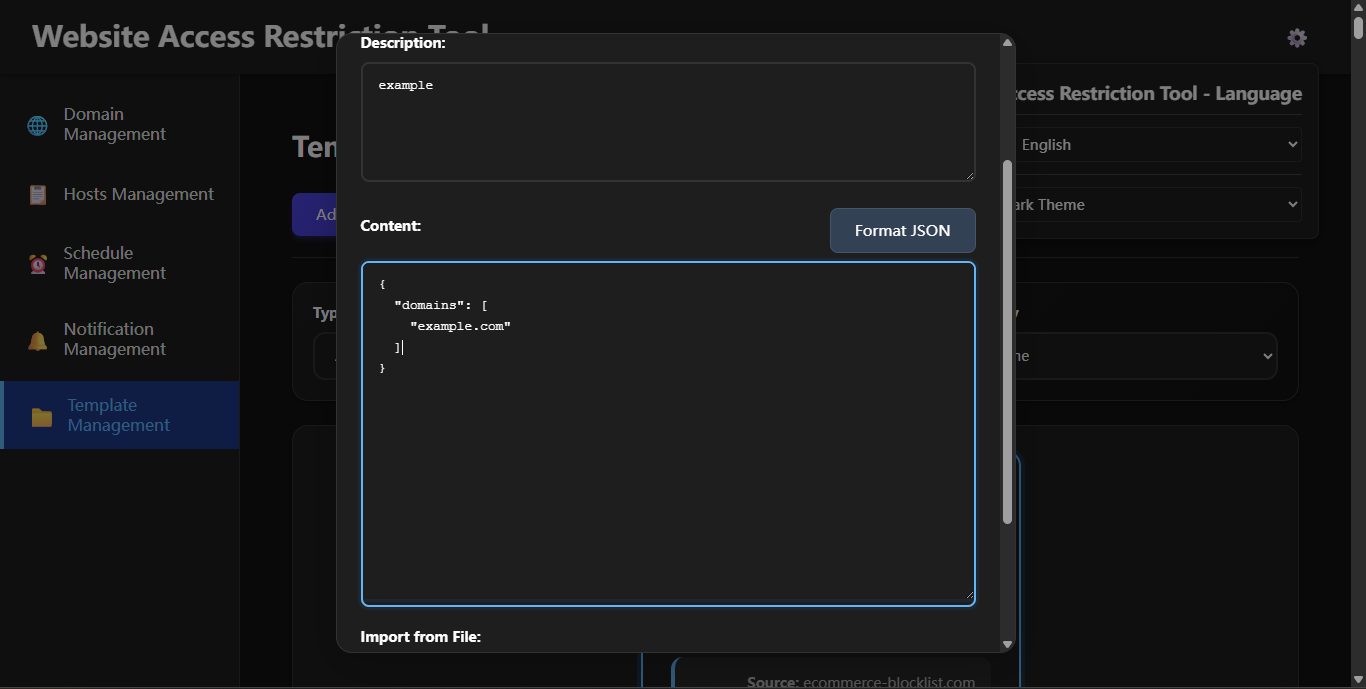
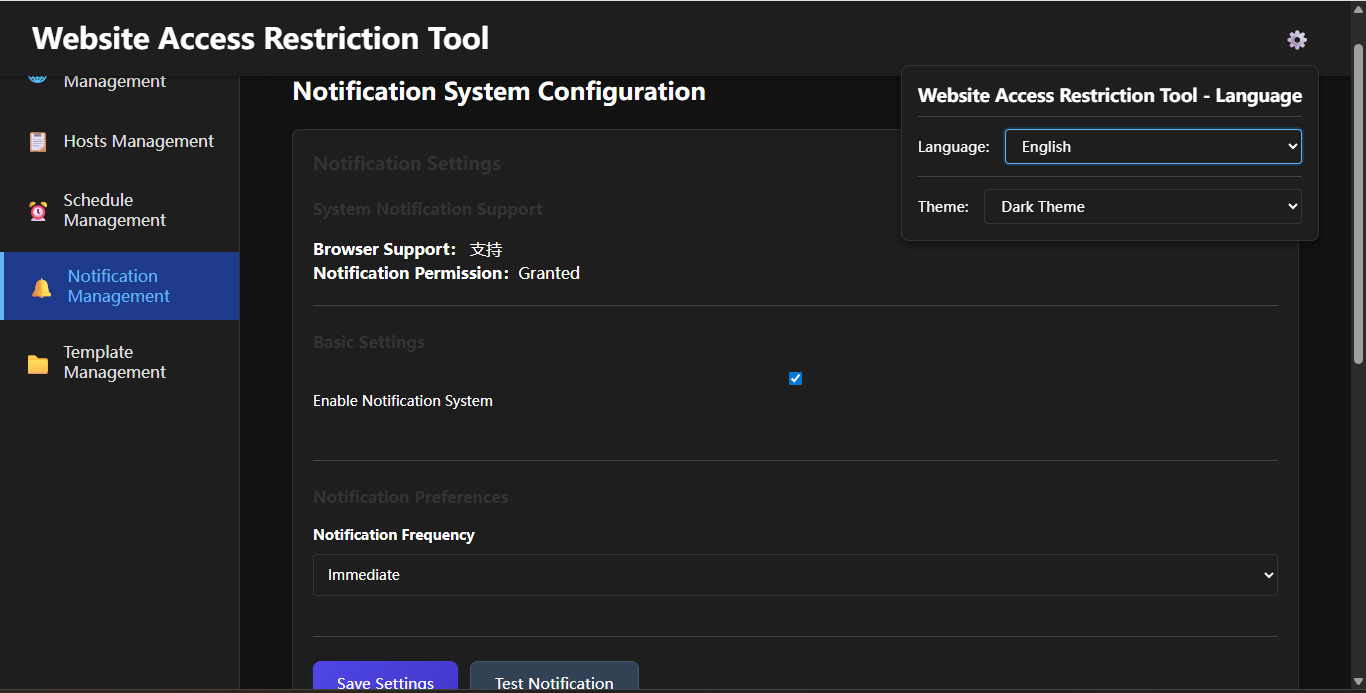
Website access restriction tool graphical interface - configuration page

Configuration

After installation, you'll need to configure the tool:

  1. Open the application
  2. Navigate to Settings
  3. Configure your blocking preferences
  4. Save your settings

First Use

To start blocking websites:

  1. Add websites to your block list
  2. Set up blocking schedules if needed
  3. Enable the blocking feature
  4. Test by attempting to access a blocked website

Next Steps

Once you've completed the basic setup, you may want to:

  • Explore advanced filtering options
  • Set up different blocking profiles
  • Configure notifications
  • Check out our other tutorials for more advanced features

Legacy Version Usage Instructions

We are committed to providing users with the best product experience and technical support. With the continuous development of technology, we have had to adjust our support strategy for older versions:

Versions No Longer Supported

Except for versions 1+ and 2+, all other older versions (including but not limited to v0.1-v1.0, v2.0-v2.9, etc.) are no longer supported. This means:

Reasons for Discontinuation

  1. Outdated Technology: Older versions are based on outdated technical architectures and cannot adapt to modern operating systems and browser environments
  2. Security Risks: Older versions have potential security vulnerabilities that cannot be fixed in a timely manner
  3. High Maintenance Costs: Maintaining multiple versions simultaneously diverts development resources, affecting the iteration speed of new versions
  4. Large Function Differences: Older versions have significant functional differences from the current version, resulting in high support costs

Recommended Upgrade Path

If you are still using an unsupported older version, we strongly recommend upgrading to the latest version:

  1. Back up your current configuration data (if any)
  2. Uninstall the old version of the software
  3. Download the latest version from our official website: https://websiteblocker.vercel.app/download
  4. Install the latest version and reconfigure your settings
Important Note

Continuing to use unsupported older versions may cause the software to not work properly, pose security risks, and may be incompatible with new operating systems. Please upgrade to the latest version as soon as possible for the best experience and security.